
If you’ve ever tried to open your WordPress site but got a message in your browser that said:
“This page isn’t working — too many redirects”
It’s annoying, as you know. One minute your website works fine, and the next it gets stuck in a loop that sends people back and forth without ever loading the page.
Most of the time, WordPress users get the “Too Many Redirects” error, which is also known as a “redirect loop.” The good news, though? It’s usually simple to fix once you know what’s going on.
This tutorial will lead you through:
- What does “Too Many Redirects” mean?
- Why it takes place in WordPress
- How to fix it step by step, even if you can’t log in
- How to make sure it doesn’t happen again
It’s like a clear, step-by-step teacher’s guide—no fancy words, just plain English so you can understand it and get your site back online.
1. What does it mean when it says “Too Many Redirects”?
The browser makes a request to the server for a certain page when you visit a website. There are times when the host tells the browser:
“This page has moved. Please click here instead.”
That is known as a return. It happens all the time. For security reasons, if you type http://example.com, it might change to https://example.com.
If something goes wrong, though, your computer may keep getting told to “go there” and “come back here” over and over again. This back and forth can go on forever, until the browser gives up and shows the “Too Many Redirects” problem.
2. Reasons Why WordPress Redirect Loops Happen
This can happen for a number of reasons, and understanding them will help you fix the issue more quickly:
a) WordPress URL settings that are wrong
A reroute loop can happen if your WordPress Address (URL) and Site Address (URL) don’t match up right.
Such as:
- The address of WordPress is https://www.example.com.
- URL of the site: https://example.com
The mistake can be caused by that small change in “www.”
b) HTTPS/SSL Not Set Up Correctly
If your SSL settings aren’t right and you switch from HTTP to HTTPS, WordPress might keep switching between the two.
c) Problems with plugins
Because they use the wrong rules, some plugins, like SEO, caching, or redirection plugins, can create endless redirect loops by mistake.
d) Problems with the.htaccess file
Server-level routes are controlled by your.htaccess file. If it has the wrong rules or too many of them, it can loop forever.
e) Server redirects that aren’t set up right
The issue might be caused by the settings on your hosting server, like Cloudflare’s “Always Use HTTPS” setting mixed with WordPress’s SSL settings.
f) Errors with WordPress Multisite Domain Mapping
If you don’t set up multisite and name mapping correctly, you could end up with constant redirects.
3. Fixing WordPress’s “Too Many Redirects”
Let’s start with the easiest option and work our way up to the more difficult ones.
Step 1: Clear your browser’s cache and cookies.
Before you make any big changes, try this quick fix:
- Launch your web browser.
- Go to “Settings” and then “Privacy & Security.”
- Delete your site’s cookies and cached info.
Sometimes the browser just remembers old reroute instructions.
Step 2: Turn off plugins
If you are able to log in:
- Open Plugins and click on Installed Plugins.
- Turn off all plugins.
- If the site loads again, turn plugins back on one by one to figure out what’s wrong.
If you are unable to log in:
- Use your hosting File Manager or FTP to access your files.
- You can change the name of the plugins folder in wp-content to plugins-old.
- Reload your website.
Step 3: Check the URLs for WordPress and your site.
If you can log in:
- Navigate to General > Settings.
- Make sure that the WordPress Address and the Site Address are the same, with the www and https in both.
If you can’t log in:
- On your hosting, open phpMyAdmin.
- To get to the wp_options table, choose your database and open it.
- Find the siteurl and home rows and change them so they match perfectly.
Step 4: Clear the.htaccess file.
If the.htaccess file is broken, use the normal WordPress version to replace it:
The default.htaccess file for WordPress is:
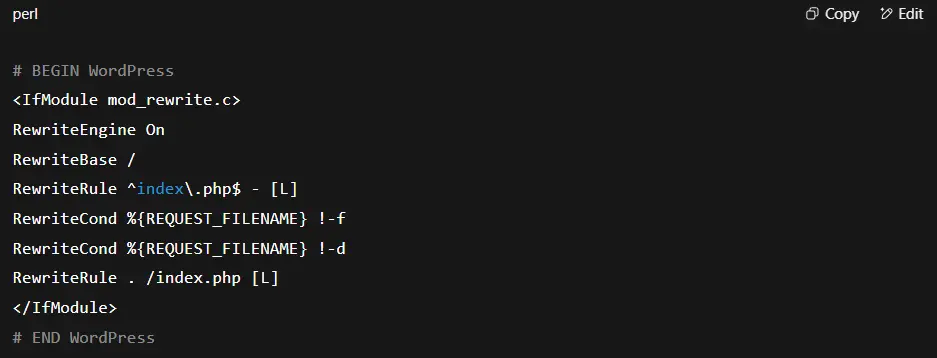
Steps:
- In FTP or File Manager, change the.htaccess file name to.htaccess-old.
- Create a new .htaccess file and paste the above code.
Step 5: Fix the settings for HTTPS
In case you just added SSL:
- Check to see if your SSL certificate is still valid.
- You can handle HTTPS redirection correctly by using a plugin like Really Simple SSL.
- Don’t turn on HTTPS in both WordPress and your CDN at the same time. Pick one that needs it.
Step 6: Check Cloudflare or a CDN’s settings.
In case you use Cloudflare:
- Temporarily turn off “Always Use HTTPS.”
- Ensure that the “SSL/TLS” settings are correct. Many WordPress sites work best in “Full” mode.
Step 7: Get in touch with hosting support
If nothing fixes the problem, it could be with the server. Your hosting company can look at the Apache/Nginx settings or links that aren’t set up right.
4. How to Keep Redirect Loops from Happening Again
As important as it is to fix the problem, it’s also important to make sure it doesn’t happen again.
To keep your WordPress site safe from “Too Many Redirects” problems, do the following:
a) Pick a URL for your main site and don’t change it.
You can use http or https on your site, with or without www. You should pick one main style, though, and use it everywhere.
For instance:
✅ Good: https://example.com (used everywhere — WordPress settings, Google Search Console, SSL, CDN)
❌ Bad: Using https://www.example.com in some places and https://example.com in others.
Once you’ve chosen a format:
- Navigate to Settings > General in WordPress to change it.
- Both your server and CDN must be pointing to the same version. It is very important.
b) Don’t use more than one HTTPS redirect source.
Too many HTTPS redirects turned on is one of the most common reasons for a redirect loop.
Avoid:
For Cloudflare, “Always Use HTTPS” means that HTTPS should always be used. For WordPress, there is an HTTPS app and an HTTPS redirect in.htaccess.
Instead:
Choose just one way to switch to HTTPS to avoid problems.
c) Only use one method of redirection
There may be problems if you have more than one plugin or server rule that handles redirection.
Stick to one way that works:
- One redirection tool, like Redirection or Rank Math, is enough for most sites.
d) Test changes in a staging site first.
We recommend testing big changes in a staging setting before putting them into action. This includes installing SSL, updating plugins, and changing URLs.
e) Stay up to date on plugins and themes
- Bugs that cause redirects can be found in old apps.
- Regularly update all of your WordPress plugins, themes, and core.
- If you no longer need a plugin, get rid of it totally.
f) Check your.htaccess file every so often
- A lot of extra or similar redirect rules can show up in.htaccess over time.
- Clean it up every couple of months.
g) Don’t hard-code URLs in your code
If you add SSL or change the name, hardcoded URLs might not work right.
Use the WordPress features:

h) Keep an Eye on Your Site Consistently
Consider installing programs such as UptimeRobot to ensure you receive alerts if your website starts to redirect unexpectedly.
i) Use backups
Keep a full backup of your site (database and files) at all times.
j) Check SEO and redirect rules every three months
You should go through your redirect rules every few months and get rid of any that aren’t needed.
5. Sample Situations for Solving Problems
Case 1: You enabled HTTPS in both Cloudflare and WordPress and changed from http:// to https://. This creates a loop.
Fix: Turn off one HTTPS reroute setting and leave the other one on.
Case 2: You set /home to redirect to / with a redirecting plugin, but / goes to /home instead.
Fix: Redirect rules that clash should be removed.
In conclusion
The “Too Many Redirects” error might look scary, but it’s usually just a small problem like URLs that don’t match, HTTPS settings that don’t work together, or a plugin rule that doesn’t work right.
Once you’ve done the things listed above, you can quickly:
- Determine the cause.
- Get rid of the loop.
- Keep it from happening again.
Once your site is back online, you should keep your settings clean, make sure that redirect rules don’t cross, and test any changes before adding them to the live site.
Have you already encountered the “Too Many Redirects” error? Which solution did you find to be the most effective?
Please leave a comment about your experience; it might help someone else fix their site and share this guide with other WordPress users if you thought it was helpful.
Need help from a professional to fix WordPress errors?
📞 Call us at +63-9633112000
📧 Email: hello@preetwebvision.com
🌐 Visit: Preet Web Vision
Check out our YouTube channels:
- Preet Tech Ideas (English)
- Preet WebXP (Hindi)